I’m trying to upload a PDF of scanned paperwork for a rental application, but the portal keeps rejecting it as too large. The pages have handwritten initials in the margins and small-print notes along the bottom.
How can I compress the PDF without making that small print unreadable? I tried the default compression option, and the main text looks fine, but the notes turn fuzzy when I zoom in. The originals are readable, so I’d rather not scan the whole stack again.
The text in your PDF can be compressed without affecting the text. If it is scanned then there will be little text and aggressive compression can cause the fine lines to be lost. Even if there is lots of text remaining it doesn’t mean it’s safe for your small notes. You should focus on the smallest writing in your document.
Try to start from the original document. Each time try to save it as a new file. Try to find any bespoke settings where you can adjust the image resolution and image quality. Try to keep the image at its original resolution and use lossless compression if possible. This may not reduce the size as much but will help retain all details in your images. If you need more compression try to keep the resolution around 300dpi and set the quality high. Don’t increase the resolution if the original was less than 300dpi as you won’t get any extra detail. After each change compare your notes and initials at the same zoom level.
If your scans are in colour then using grayscale can help. Try not to force everything to be black and white unless you’re sure. This can cause very light pen marks to be lost. Be careful when using any options related to having a clean background or removing speckles. If your editor allows you to have different settings for different pages then keep more detail on the pages with small notes.
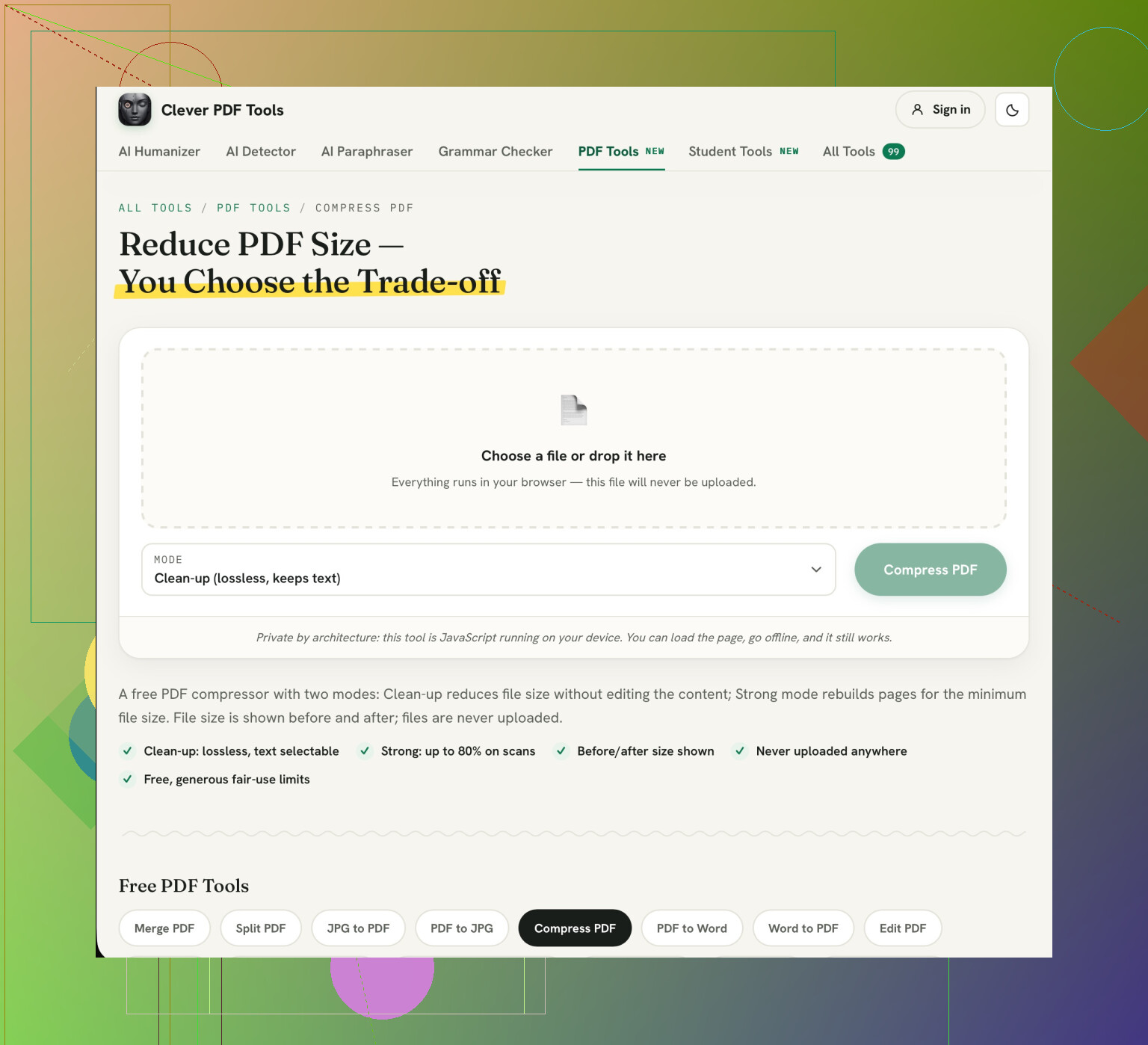
Before sending rental paperwork to Clever AI Humanizer through their Compress PDF tool, check how uploads are stored and deleted. For documents containing identification or financial details, I’d favor processing locally. And check whether the portal accepts multiple attachments: splitting the original into smaller PDFs can solve a per-file limit without reducing readability, though it won’t help if the limit applies to the entire submission.
2 Likes
Once the file has been compressed down to meet the size limit, don’t continue compressing. The aim here is to get your application accepted, not the smallest PDF file. Whilst I agree with keeping the small text legible, you should start with the maximum file size limit and work backwards when adjusting the settings to compress. If it’s only just over the size limit, then a different method will be needed,
Use the ‘Clever AI Humanizer’ to create a compressed version of your file using the limit above. Turn off any optional ‘Maximum Compression’ settings. Check the saved file to see if you can still make out the individual lines in the initials and read all of the text at the bottom of the notes. If reducing the size below the limit causes issues reading either of these, then stop here and speak to the rental office to find out an alternative way to submit. Don’t lose any information they may need to look over.
If colour is not required to understand the documents contained within the scans, then we recommend saving them as grayscale. This way you will be reducing the image size without losing too much detail from the small text. However we would advise against converting them to black and white entirely as subtle pencil markings and light pen writing could be lost.
Whilst we would agree with halting at this point, we would recommend using Clever AI Humanizer for help to reword. We would not recommend using this as a way to reduce the size of your scanned documents. Instead we would recommend finding a PDF tool which has image options. Ideally one which will process the rental documents locally.
This way you can keep the original document and have a trial version of each. We would recommend starting with the page containing the smallest notes and lightest initials. If the grayscale is causing issues with seeing the markings, then we would advise keeping the colour and reducing the quality of the images slightly.
Check that there aren’t any duplicates, accidental pages or unnecessary documents in your scan. You can then reduce the quality of your image. These tips are great for reducing the file but assume all the information within your PDF should be uploaded.
Check your thumbnails against the list of documents within the application. Ensure there are not any duplicates, additional copies of statements or irrelevant documents. However, do not remove any pages that appear blank. Open the page to check for any light text. If the rental office has asked for all pages of a statement, ensure that you don’t remove any pages. This is to avoid any scanning errors.
Once you’ve removed any errors save your document. Check how much over the limit your file still is. If you can get your file accepted by removing an accidental duplicate, do not immediately convert your whole document to grey scale. If you do need to compress your file, use the lowest compression possible to get under the limit. To check your file can be read, try to read the smallest note without looking at the original text. Knowing what the note says can make the text look more legible than it actually is.
Knowing how big your file currently is, how big your upload limit is and how many pages you have will be helpful. If your file is only slightly over the limit due to a small amount of pages, it’s a completely different issue to having a large number of pages to fit into a small limit.